How to Add Personalised Images to Any ESP: A Universal Guide

One Workflow, Any ESP
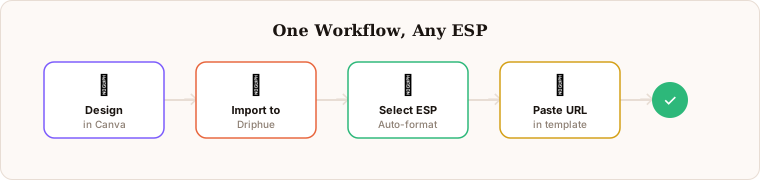
The beauty of personalised email images is that the core workflow is identical regardless of which ESP you use. You design in Canva, add merge tags in Driphue, and paste a personalised URL into your email template. The only thing that changes between ESPs is the merge tag syntax — and Driphue handles that formatting automatically.
This guide is for marketers who want to understand the universal pattern once and apply it to any platform, rather than reading a separate tutorial for every ESP they work with. We cover the workflow logic, the ESP-specific syntax differences that matter, setup steps for five of the most widely used platforms, fallback value strategy, and the testing approach that ensures personalised images render correctly before going live.
For an in-depth guide on Klaviyo specifically, see our Klaviyo integration guide. For Brevo, see our Brevo setup guide. For the full context on email image personalisation, start with our complete guide.
The Universal Workflow
Every personalised email image, regardless of ESP, follows the same four-step workflow. Understanding the logic of each step makes the ESP-specific details that follow easier to apply.
Step 1 — Design in Canva. Create your email image in Canva using your brand’s fonts, colours, and photography. Leave placeholder text where personalised content will appear — the subscriber’s name, a location reference, a loyalty balance, or any other data field. The Canva design defines the visual; Driphue defines what is dynamic within it.
Step 2 — Import to Driphue and add merge tag zones. Import the Canva design into Driphue. Identify which text elements should be dynamic, and map them to ESP merge tags. Driphue renders personalised text into the correct position, size, and font weight as defined in the original design.
Step 3 — Generate the personalised URL. Driphue generates a dynamic image URL that contains your ESP’s merge tag syntax embedded as URL parameters. The URL looks like a normal image link but includes the personalisation tokens your ESP will substitute with real subscriber data at send time.
Step 4 — Paste into your ESP email template. Add the URL to your email as an image source. When the email is sent and a subscriber opens it, the ESP substitutes the merge tags with the subscriber’s actual data, Driphue receives the request with that data, renders the personalised image in real time, and serves it in the email.
ESP-Specific Syntax and Setup
Mailchimp
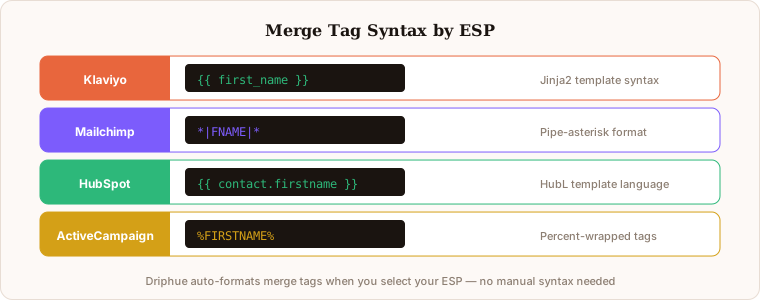
Mailchimp uses pipe-delimited merge tags: *|FNAME|* for first name, *|LNAME|* for last name, and custom fields defined in the audience settings. These tags substitute with real subscriber data when Mailchimp sends the email, and they work in image URLs exactly as they do in email body text.
Setup: Design in Canva, import to Driphue, and select Mailchimp as your ESP. Driphue generates the URL with Mailchimp-compatible tag syntax pre-formatted. In the Mailchimp email builder, use a Code block or the image URL field to paste the Driphue URL. Mailchimp will substitute *|FNAME|* with the subscriber’s actual first name when the email sends.
Best used for: Welcome series, newsletter hero images, and promotional campaigns. Mailchimp’s automation features support triggered flows for cart abandonment with connected Shopify or WooCommerce stores.
Omnisend
Omnisend is built specifically for e-commerce and its merge tag syntax accesses subscriber properties stored in the Omnisend contact profile. Omnisend automation workflows provide access to product and order data in cart and browse abandonment flows, making it one of the most data-rich platforms for e-commerce personalised images.
Setup: Select Omnisend in Driphue and merge tags are formatted correctly for the platform. In the Omnisend email editor, use the image URL option to paste your Driphue personalised URL. For cart flows, verify that first name is populated in the contact profile before testing — Omnisend sometimes requires an explicit contact property mapping step for third-party data sources.
Best used for: E-commerce automation flows including cart recovery, welcome series, and post-purchase sequences. Omnisend’s e-commerce data model makes product-level personalisation accessible alongside name personalisation.
HubSpot
HubSpot uses contact properties accessible through personalisation tokens. Common tokens include the contact’s first name, company, city, and any custom property created in the HubSpot CRM. HubSpot’s token syntax is set using the contact property API name, which you can find in the HubSpot Property Settings under Contacts.
Setup: Driphue generates URLs with HubSpot-compatible token syntax. In the HubSpot email editor, use a rich text or HTML module to add the personalised image URL as an image source. HubSpot’s personalisation token preview feature allows you to check how the URL resolves for a test contact before sending.
Best used for: B2B and B2C brands using HubSpot CRM. Personalised images work well in onboarding sequences, lead nurture campaigns, and re-engagement workflows. HubSpot’s extensive contact property system means you can personalise with virtually any data point that exists in your CRM.
ActiveCampaign
ActiveCampaign uses personalisation tags with a percent-delimited syntax. Contact fields like first name, last name, and custom fields are all accessible as merge tags. ActiveCampaign also supports conditional logic in automation sequences, which pairs well with segment-specific personalised image templates.
Setup: Driphue formats the URL with ActiveCampaign tag syntax. In the ActiveCampaign email designer, use the image source URL field to paste the Driphue personalised URL. Test using ActiveCampaign’s “View as [contact]” preview feature to verify personalisation resolves correctly for specific contacts before activating the automation.
Best used for: Brands with complex automation sequences across lifecycle stages. ActiveCampaign’s conditional logic combined with personalised images creates highly targeted visual experiences. Works particularly well for segment-specific offers and lifecycle marketing where different subscriber groups receive visually differentiated images within the same automation.
SendGrid
SendGrid uses Handlebars-style merge tags with double curly brace syntax: {{first_name}} for first name, with the variable name matching the field name in the SendGrid dynamic template data object. This works natively with Driphue URL structure and is one of the cleanest integrations for developer-led teams.
Setup: Driphue generates URLs with SendGrid Handlebars syntax. In your SendGrid dynamic template, add an image element with the Driphue personalised URL as the source. Pass the personalisation data object when sending via the SendGrid API, and the Handlebars tokens resolve in both the email body and the image URL.
Best used for: Developer-friendly teams using SendGrid for both transactional and marketing emails. Works particularly well for transactional post-purchase personalised images, order confirmation personalisation, and programmatic send workflows where personalisation data is passed at send time via the API.
Other ESPs
Driphue works with 20+ email service providers including Campaign Monitor, Constant Contact, GetResponse, MailerLite, Drip, and more. The workflow is always the same: design in Canva, import to Driphue, add merge tags, generate the URL, and paste it into your ESP template.
If your ESP is not listed on the integrations page, it will likely still work. Any ESP that supports merge tags in image URLs can integrate with Driphue. The key requirement is that the ESP substitutes merge tags that appear in image URL parameters, not just in text content — most modern ESPs handle this, but it is worth confirming with a test send before deploying to your full list.
Fallback Values and Error Handling
Every personalised image should have fallback values configured for the case where subscriber data is missing. A subscriber without a first name stored in the ESP would receive an image with a blank space where the name should appear if no fallback is set. Configure fallbacks in Driphue for every dynamic text zone: “Friend” or “Valued Customer” for name fields, the sender’s city for location fields, or an appropriate generic value for any custom data point.
Fallback values also protect against edge cases specific to each ESP — new subscribers who have not yet provided full profile data, contacts imported from legacy systems with incomplete records, or automation branches triggered before the contact profile is fully populated. Test fallback behaviour explicitly before going live by sending to a test contact with intentionally blank fields.
Common Patterns Across All ESPs
Regardless of which ESP you use, the same deployment best practices apply. Start with your highest-impact flow — typically welcome emails or cart abandonment — rather than deploying personalised images across every flow simultaneously. Personalise the hero image with subscriber first name as a starting point; layer in additional data points (location, loyalty tier, product category) once the name personalisation is validated and performing. Test rendering across email clients before activating any flow. For cross-client testing guidance, see our compatibility guide.
Gmail image caching behaviour is consistent across all ESPs because caching happens at the email client level, not the ESP level. Driphue’s unique-URL-per-subscriber approach ensures personalisation displays correctly regardless of your ESP choice, since Gmail caches the URL for each unique subscriber separately. For the full Gmail caching explanation, see our Gmail caching guide.
For the complete personalisation strategy, see our email personalisation guide. For the 90-day implementation roadmap, see our implementation roadmap. Start your free Driphue trial and deploy personalised images across any ESP your team uses.
Keep reading
More from the blog
 Email Personalization
The E-commerce Guide to Email Image Personalisation: From First Image to Full Automation
11 min read Email Personalization
Email Image Personalisation Tools Compared: Driphue vs NiftyImages vs Hyperise vs OKZest
10 min read Email Personalization
Email Image Personalization: The Complete Guide for E-Commerce Brands in 2026
8 min read
Personalise every image in your emails
Turn your Klaviyo, Brevo or any-ESP campaigns into dynamic, per-subscriber images and countdown timers — no code required.