How to Set Up Dynamic Personalised Images in Brevo (Sendinblue) Emails
Why Personalised Images in Brevo
Brevo (formerly Sendinblue) is a popular all-in-one marketing platform used by small-to-medium businesses and growing e-commerce brands. Its automation workflows and contact attribute system make it well-suited for personalised email images — and with Driphue, the setup takes under 10 minutes.
This guide covers everything you need to add dynamic personalised images to your Brevo email campaigns and automations. For broader context on what personalised images are and why they drive results, see our complete guide to email image personalisation.
How Brevo Contact Attributes Work with Driphue
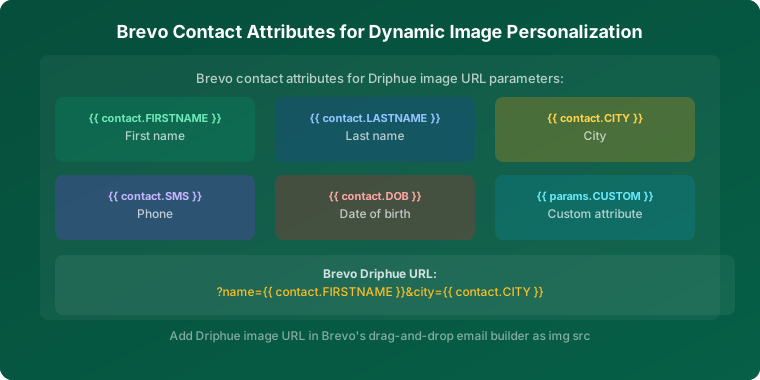
Brevo stores subscriber data as contact attributes. These attributes are available in email templates using Brevo's personalisation syntax. The most common attributes for personalised images are {{ contact.FIRSTNAME }}, {{ contact.LASTNAME }}, and any custom attributes you've created for your contacts.
Driphue generates a personalised image URL that accepts these contact attributes as URL parameters. When Brevo sends your email, it replaces the merge tag placeholders in the image URL with each subscriber's actual data — and Driphue renders a unique image for each recipient at the moment they open the email.
Setting Up Dynamic Personalised Images in Brevo: Step by Step
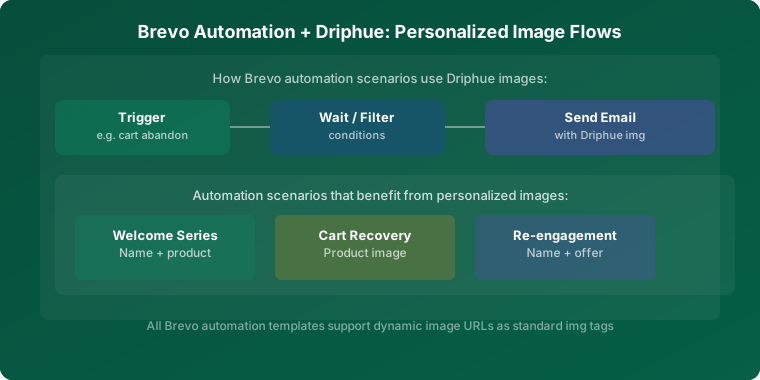
This guide covers everything you need to add dynamic personalised images to your Brevo email campaigns and automations.
Step 1: Design Your Image in Canva
Start by creating your email image in Canva. Design it exactly as you want it to appear to subscribers.
Step 2: Import Your Design into Driphue
Log in to your Driphue account and use the Canva integration to import your design.
Step 3: Mark the Dynamic Text Elements
In the Driphue editor, click on the text layer you want to personalise.
Step 4: Generate Your Personalised Image URL
After marking your dynamic elements, Driphue generates a base image URL.
Step 5: Add Brevo Merge Tags to the Image URL
Replace the placeholder value with Brevo's contact attribute syntax: {{ contact.FIRSTNAME }}.
Step 6: Embed the Image URL in Your Brevo Template
In your Brevo email template editor, add an Image block and paste your personalised Driphue URL.
Keep reading
More from the blog
 Email Personalization
The E-commerce Guide to Email Image Personalisation: From First Image to Full Automation
11 min read Email Personalization
Email Image Personalisation Tools Compared: Driphue vs NiftyImages vs Hyperise vs OKZest
10 min read Email Personalization
Email Image Personalization: The Complete Guide for E-Commerce Brands in 2026
8 min read
Personalise every image in your emails
Turn your Klaviyo, Brevo or any-ESP campaigns into dynamic, per-subscriber images and countdown timers — no code required.