The E-commerce Guide to Email Image Personalisation: From First Image to Full Automation
Who This Guide Is For
This guide is for e-commerce marketers who want to add personalised images to their email program but are not sure where to start, what to prioritise, or how to scale from a first experiment to full automation. If you have ever wanted to personalise your email visuals but found the concept overwhelming, this is your practical roadmap.
For the technical foundations, see our complete guide to email image personalisation. This guide focuses specifically on the e-commerce implementation journey.
Phase 1: Your First Personalised Image (Day 1)
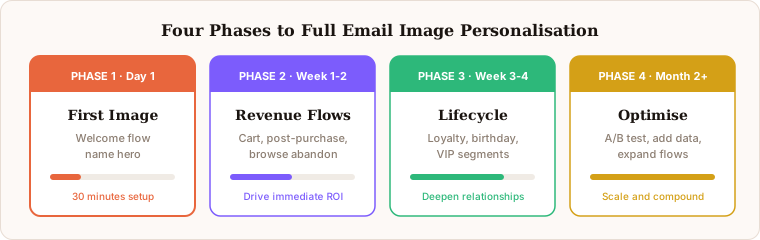
Start with the simplest possible win: a name-personalised hero image in your highest-volume email flow.
Pick your flow. For most e-commerce brands, the welcome series is the ideal starting point. It has the highest open rates of any flow, the subscriber is most engaged, and name personalisation is the simplest merge tag to implement.
Design in Canva. Take your existing welcome email hero image (or create a new one) and leave space for the subscriber name. Keep it clean: one name placement, your brand colours, a welcoming message.
Import to Driphue. Import the Canva design, add a text layer with the first name merge tag, and generate your personalised URL.
Paste into your ESP. Whether you use Klaviyo, Mailchimp, Omnisend, or another ESP, replace the static hero image URL with the Driphue personalised URL.
Test and send. Preview with sample data, send a test email to yourself, and activate. You should be live within 30 minutes.
Phase 2: Expand to Revenue-Driving Flows (Week 1-2)
Once your welcome flow is personalised, move to the flows that drive the most revenue:
Cart abandonment. Add the subscriber name to your cart recovery hero image. If your ESP supports product-level merge tags (Klaviyo does natively), consider including the product name as well. See our cart abandonment image guide for detailed setup.
Post-purchase. Personalise thank-you and review request images with the customer name. This reinforces the personal relationship after the transaction.
Browse abandonment. If you have browse abandonment flows, personalise the hero image with the subscriber name and the browsed category or product.
Phase 3: Add Loyalty and Lifecycle Personalisation (Week 3-4)
With your core transactional flows personalised, expand to lifecycle-based personalisation:
Loyalty and rewards. Display points balance, tier status, and available rewards in personalised images. This requires your loyalty platform to sync data to your ESP. See our loyalty image guide for setup details.
Birthday and anniversary. Personalised milestone images that celebrate the subscriber. Simple name personalisation combined with a special offer or reward.
VIP and segment-specific. Create different personalised images for different customer segments. Gold members see one version, Silver members see another, with their name and tier rendered dynamically.
Phase 4: Optimise and Scale (Month 2+)
With personalised images across your major flows, focus on optimisation:
Measure impact. Track image views in the Driphue dashboard. Compare click-through rates before and after personalisation for each flow. Identify which personalisation types drive the most engagement.
Iterate on design. Test different name placements, image styles, and personalisation approaches. A/B test your personalised images against different design variants.
Add more data points. Move beyond first name to include location, product data, purchase history, or loyalty information. Each additional data point makes the personalisation more specific and impactful.
Expand to more flows. Win-back emails, re-engagement campaigns, seasonal promotions, product launches. Every flow can benefit from personalised visuals.
Technical Considerations
As you scale, keep these technical factors in mind:
Gmail caching: Name-based personalisation works perfectly with Gmail caching because each subscriber URL is unique. Read our Gmail guide for details.
Apple MPP: Send-time personalisation (which is how Driphue works) is fully compatible with Apple Mail Privacy Protection. Read our MPP guide for details.
Fallback values: Always configure fallback text for merge tags that may be empty. "Friend" or "there" are common defaults when first name is not available.
ESP merge tag troubleshooting: If images are not personalising correctly, check our troubleshooting guide for common causes and fixes.
The Compound Effect
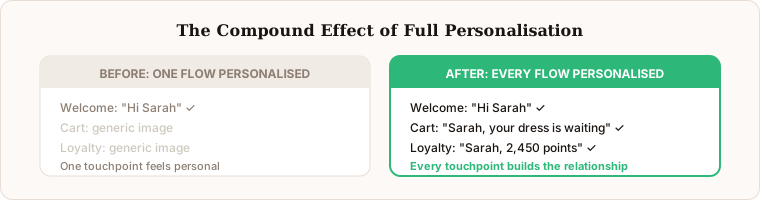
Personalising one flow is good. Personalising every touchpoint in your email program creates a compounding effect where every email reinforces the feeling that your brand pays attention to each individual customer. Over time, this builds a measurably different relationship between your brand and your subscribers.
Start with Phase 1 today. One flow, one personalised image, 30 minutes. Then let the results guide your expansion from there.
Keep reading
More from the blog
 Email Personalization
Email Image Personalisation Tools Compared: Driphue vs NiftyImages vs Hyperise vs OKZest
10 min read Email Personalization
Email Image Personalization: The Complete Guide for E-Commerce Brands in 2026
8 min read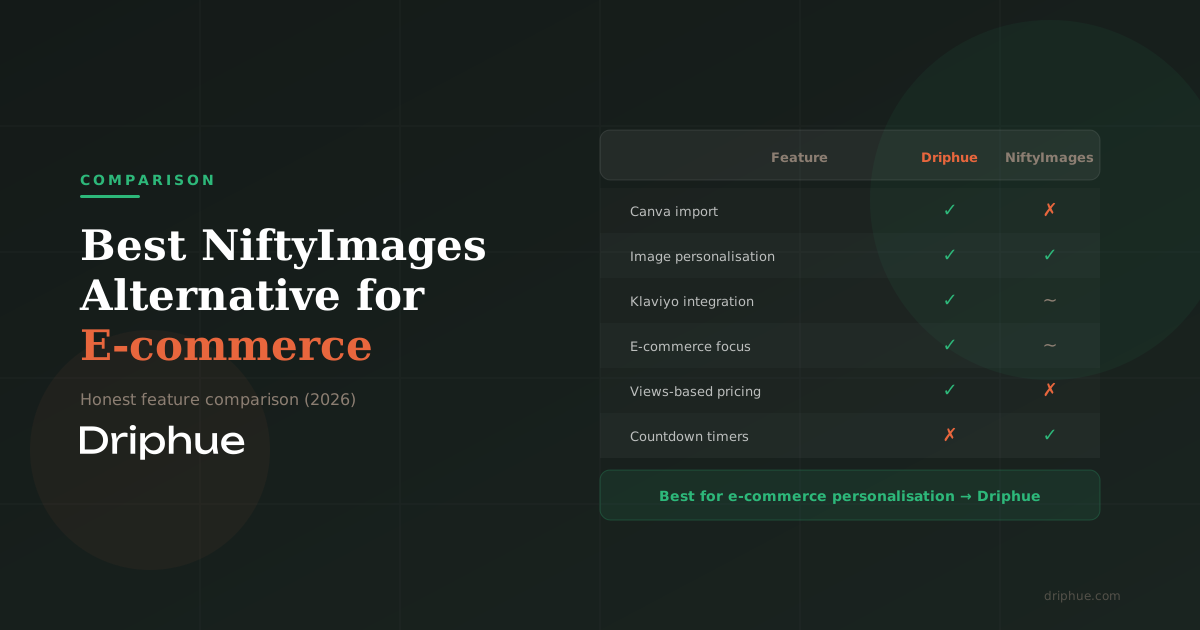 Email Personalization
Best NiftyImages Alternative for E-commerce
9 min read
Personalise every image in your emails
Turn your Klaviyo, Brevo or any-ESP campaigns into dynamic, per-subscriber images and countdown timers — no code required.