How to Add Dynamic Personalised Images to Klaviyo Emails (Step-by-Step)
Why Klaviyo Is the Best ESP for Personalised Email Images
Klaviyo is the dominant ESP for e-commerce, and its data model makes it particularly well-suited for image personalisation. Unlike general-purpose ESPs, Klaviyo natively tracks product views, cart events, purchase history, and customer properties, all of which can be passed as merge tags to personalised images. The richness of Klaviyo's data model means that image personalisation in Klaviyo goes well beyond first-name greetings into product-level, behaviour-level, and loyalty-level personalisation that no other ESP can match out of the box.
This guide walks you through setting up personalised images in Klaviyo using Driphue, from your first name-greeting banner to advanced product-level personalisation in automated flows. For the broader context on email image personalisation, start with our complete guide.
Step 1: Design Your Image Template in Canva
Start with your Canva design. This can be an existing email banner or a new template created specifically for personalisation. The key is leaving clear space for the dynamic text elements you will add in Driphue.
For a welcome flow hero image, design a branded banner with a prominent area for the subscriber's name. For a cart abandonment image, include space for both the subscriber's name and product details. For a loyalty image, leave room for the subscriber's name alongside their points balance or tier status.
Test your design with short names (Jo, Kim) and long names (Christopher, Aleksandra) to ensure the layout handles the full range gracefully. A design that looks perfect with a four-letter name may overflow with an eight-letter name if the text zone is too constrained. Better to discover this at the Canva stage than after deployment.
Step 2: Import into Driphue and Add Merge Tags
Import your Canva design into Driphue. Then add text layers with Klaviyo merge tags. Here are the most commonly used Klaviyo tags for image personalisation:
Profile properties: Klaviyo uses double-brace Liquid syntax for profile properties. {{ first_name }}, {{ last_name }}, {{ city }}, {{ region }}, and {{ country }} are available in all Klaviyo emails — campaigns, flows, and transactional sends. These are the foundation of any name or location-based personalisation and require no additional data setup beyond having the field populated on the contact profile.
Flow event variables: In flow emails triggered by specific events, you access event data through Liquid event variables. For abandoned cart flows: {{ event.ProductName }}, {{ event.ProductImageURL }}, {{ event.Price }}, and {{ event.Categories }} are available from the Added to Cart or Checkout Started events. For post-purchase flows: {{ event.OrderValue }}, {{ event.ProductName }}, and order detail fields. These variables are only accessible within the specific flow triggered by the relevant event, not in campaign emails or other flow types.
Custom properties: Any custom property you sync to Klaviyo profiles is available using the {{ person.your_property_name }} syntax. Loyalty points, VIP tier, preferred category, subscription renewal date, pet name, dietary preference, or any other data point from your store or integrations. Custom properties are among the most powerful personalisation variables because they contain the brand-specific data that generic ESP fields cannot capture.
Step 3: Generate the Personalised URL
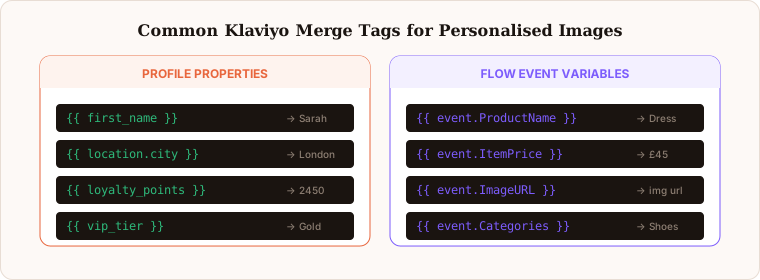
Driphue generates a URL that includes your Klaviyo merge tags in the correct Liquid syntax. The URL looks something like: https://img.driphue.com/render/your-template?name={{ first_name }}&city={{ city }}. Driphue handles the URL construction automatically — you do not need to manually build these URLs or worry about the syntax differences between Liquid, Handlebars, or other tag formats.
Set fallback values for every dynamic field in Driphue before generating the URL. For first name, use “Friend” or “You” as a fallback. For city, use your brand’s home city. For custom properties like loyalty tier, use “Member” or the lowest tier name. Fallbacks ensure subscribers with incomplete profiles receive a natural-reading image rather than a broken one with empty text zones.
Step 4: Add the Image to Your Klaviyo Email
In the Klaviyo email editor, add an image block to your email template. Instead of uploading a static image, switch to the URL option and paste your Driphue personalised URL. The URL contains the Liquid tags that Klaviyo will substitute at send time.
When Klaviyo sends the email, it replaces the merge tags in the URL with each subscriber's actual data. The Driphue image server receives the request and returns a personalised image rendered with that subscriber's specific information. From the subscriber's perspective, they simply receive a normal email image that happens to have their name on it.
Add personalised alt text in the same step. Set the image alt attribute to a Liquid string like {{ first_name }}, your exclusive offer is waiting so subscribers with images disabled receive a personalised text fallback that maintains the individual messaging even without the visual.
Step 5: Preview and Test
Use Klaviyo's preview feature with sample subscriber data to check how the personalised image resolves for a specific profile. In the preview pane, select a contact whose profile has all the relevant fields populated, and check that the image renders with their data correctly.
Also test with a contact who has incomplete data — no first name, no city — to confirm that your Driphue fallback values render as expected. A personalised image that shows “Friend, welcome” for a subscriber whose first name is missing is acceptable; a personalised image with a blank space where the name should be is not.
Send yourself and at least one other test email. Check rendering in both mobile and desktop email clients. For comprehensive cross-client testing guidance, see our email client compatibility guide.
Common Klaviyo Flows to Personalise
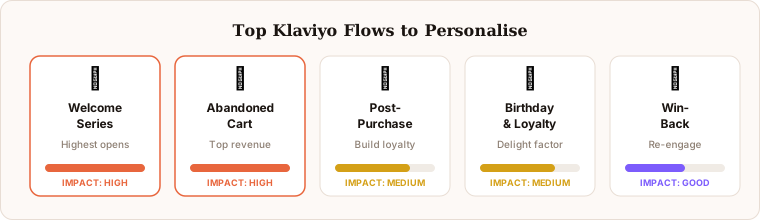
Here are the highest-impact Klaviyo flows for personalised images, ranked by typical revenue impact and ease of implementation.
Welcome series: Personalise the hero image with the subscriber’s first name. This is the simplest starting point and typically delivers the most noticeable immediate impact on engagement because open rates are highest in the welcome series. A name-personalised welcome hero is the right first Driphue project for any Klaviyo user. For the complete welcome strategy, see our welcome series guide.
Abandoned cart: Include product name and subscriber name in the recovery image. Klaviyo’s cart event data makes this the most product-specific personalisation available — showing the actual product the subscriber was considering, by name, alongside their own name. Recovery rates consistently improve by 30–50% when moving from generic to personalised cart imagery. For the full strategy, see our cart recovery guide.
Post-purchase: Show the customer name alongside their order or product details in a thank-you, review-request, or cross-sell image. The post-purchase window is a high-receptivity period — the subscriber has just had a positive transaction and is open to the next relevant suggestion.
Birthday and loyalty: Display points balance, tier status, or birthday rewards with the subscriber’s name. Personalised loyalty images make programme currency feel tangible rather than abstract, and drive significantly higher redemption rates than generic loyalty banners.
Win-back: Re-engage lapsed customers with a personalised “We miss you, Sarah” image that feels individual rather than mass-produced. Pair with a named offer expiry date (“your welcome-back offer expires Sunday”) to add credible urgency. For the re-engagement strategy, see our re-engagement guide.
Handling Gmail Caching with Klaviyo
Because Driphue generates a unique URL for every subscriber (each URL contains different merge tag values that resolve to different subscriber data), Gmail caching works in your favour for name and data personalisation. Gmail caches each unique URL separately, so Sarah always sees her personalised version and James always sees his. The caching concern — where Gmail might serve a cached image that shows yesterday’s countdown timer rather than today’s — only applies to content that needs to change between multiple opens of the same email. Data-based personalisation like names and loyalty points is stable and caches correctly.
Advanced Klaviyo Personalisation: Conditional Logic
For Klaviyo users who want to go beyond single-variable personalisation, Klaviyo’s conditional block feature can be combined with multiple Driphue image templates to create experience-branching personalisation. Show a Driphue VIP image template to contacts with a loyalty tier property set to “Gold” or above, and a standard personalised template to all other contacts, within the same campaign email. This combines Klaviyo’s segmentation logic with Driphue’s visual rendering to create fully adaptive email experiences where both the image design and the personalised data change based on subscriber properties.
Next Steps
Start with one flow and one personalised image. The welcome email hero image is the ideal starting point. Once you see the engagement difference, expand to cart recovery, post-purchase, and loyalty flows in sequence.
If you are evaluating other ESPs alongside Klaviyo, our universal ESP guide covers Mailchimp, Omnisend, ActiveCampaign, HubSpot, and more. Start your free Driphue trial and deploy your first Klaviyo personalised image today.
Keep reading
More from the blog
 Email Personalization
The E-commerce Guide to Email Image Personalisation: From First Image to Full Automation
11 min read Email Personalization
Email Image Personalisation Tools Compared: Driphue vs NiftyImages vs Hyperise vs OKZest
10 min read Email Personalization
Email Image Personalization: The Complete Guide for E-Commerce Brands in 2026
8 min read
Personalise every image in your emails
Turn your Klaviyo, Brevo or any-ESP campaigns into dynamic, per-subscriber images and countdown timers — no code required.