AWeber Personalized Email Images: Setup and Integration Guide
Adding Personalised Images to AWeber Campaigns
AWeber is one of the longest-running email marketing platforms, trusted by small businesses, entrepreneurs, and content creators for over two decades. Known for reliability and ease of use, AWeber provides a solid foundation for email marketing across a wide range of use cases. Driphue extends AWeber’s native personalisation capabilities by adding dynamic image personalisation to every campaign — subscriber names, custom field data, and segment-specific imagery rendered in real-time for each recipient.
This guide covers AWeber’s personalisation tag syntax, the campaign types where personalised images drive the most engagement for AWeber users, a complete step-by-step setup, and how to measure the impact.
AWeber’s Personalisation Tag Syntax
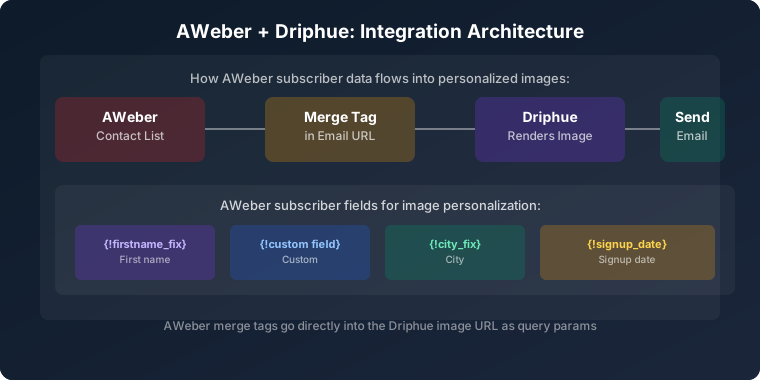
AWeber uses curly-brace personalisation tags for subscriber data. The key tags for personalised image URLs are:
{!firstname} — subscriber’s first name{!lastname} — subscriber’s last name{!email} — subscriber’s email address{!custom_field_name} — any custom field stored on the subscriber
To use these in a Driphue personalised image URL, append the AWeber tag as a query parameter:
https://img.driphue.com/[your-image-id]?name={!firstname}
AWeber processes personalisation tags in email HTML before sending, replacing each tag with the subscriber’s actual data. Driphue receives the real name at image render time and renders it into the image.
To handle subscribers with no first name stored, AWeber supports default values using the pipe character:
{!firstname | Friend}
A full personalised image URL with fallback:
https://img.driphue.com/[your-image-id]?name={!firstname | Friend}
Custom Fields for Advanced Personalisation
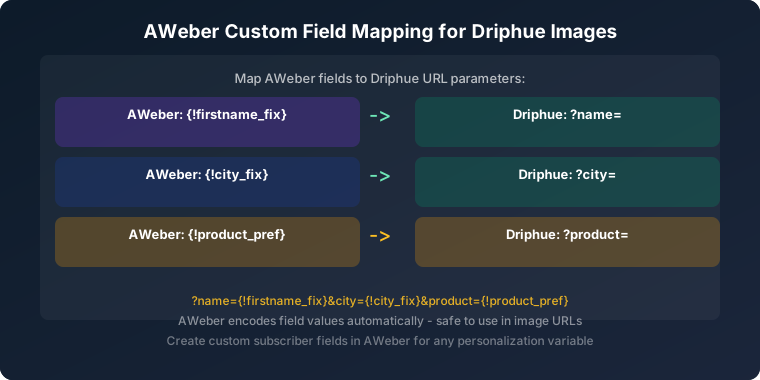
AWeber supports unlimited custom subscriber fields, making it possible to personalise images well beyond first name. Any custom field you collect at signup or update via AWeber’s API can be passed into a Driphue image URL.
Common custom field personalisation for e-commerce and creator AWeber accounts: loyalty tier, product preference, subscription level, location, and purchase category. A subscriber who indicated at signup that they’re interested in skincare sees a skincare-relevant personalised image. A subscriber tagged as a premium member sees premium-tier imagery.
For the full purchase history and custom data personalisation strategy, see our guide to purchase history email personalisation.
Campaign Types That Benefit Most from Personalised Images in AWeber
Autoresponder Welcome Sequences
AWeber’s autoresponder is its most powerful feature — a reliable automated sequence that fires for every new subscriber from the moment they sign up. A personalised hero image in autoresponder email 1 — with the new subscriber’s first name in a warm, brand-consistent design — creates a personal first impression at the peak of a new subscriber’s engagement.
For the full welcome sequence strategy, see our guide to welcome email series personalisation.
Broadcast Campaigns
Standard broadcast emails — weekly newsletters, promotional sends, new content announcements — become meaningfully more personal with a personalised hero image. “Sarah, this week’s special” in a well-designed personalised image creates immediate relevance that generic promotional banners cannot match.
For small businesses and creators using AWeber for regular newsletters, consistent first-name personalisation in the hero image creates a warm, relationship-oriented communication style that builds engagement over time.
Product and Service Launch Campaigns
For e-commerce brands, coaches, and course creators using AWeber, product and service launch campaigns benefit from personalised announcement images. “Sarah, our new [product] is live” or “Sarah, your exclusive early access” creates a personalised launch moment that generic announcement emails can’t replicate.
Re-engagement Sequences
For inactive subscribers, personalised re-engagement images — with the subscriber’s name in a warm, brand-consistent “we miss you” image — outperform generic win-back templates. AWeber’s engagement tracking makes it straightforward to identify inactive subscribers and trigger a personalised re-engagement sequence. For the full strategy, see our guide to re-engagement email personalisation.
Tagging and Segmentation Campaigns
AWeber’s tagging system enables subscriber segmentation by interest, behaviour, and engagement level. Create different Driphue image templates for different tag segments: new subscribers, engaged buyers, inactive subscribers, product-category interests. Each segment receives a personalised image appropriate to their relationship with your brand.
For comprehensive segmentation strategy, see our guide to email list segmentation for personalisation.
Course and Digital Product Campaigns
AWeber is widely used by course creators, coaches, and consultants for digital product marketing. Personalised images in course launch and promotion emails — with the subscriber’s name in the course promotion visual — create a more compelling, individually addressed launch experience.
“Sarah, [course name] is now open for enrolment” in a personalised image is a more personal course launch prompt than a generic promotional banner. For the full re-engagement strategy relevant to course promotion, see our guide to re-engagement email personalisation.
Step-by-Step Setup: Personalised Images in AWeber with Driphue
Step 1: Design Your Image in Canva
Create your email image in Canva. Add a text layer for the subscriber’s first name, positioned prominently within the image — it should be central to the message, not a small decorative addition. Driphue’s Canva integration handles the import directly, so no manual export is required.
Step 2: Import into Driphue
Import your Canva design into Driphue. Select the name text layer, mark it as dynamic, and assign the parameter name name. Driphue generates your base personalised image URL.
Step 3: Build the AWeber-Compatible URL
Append AWeber’s personalisation tag to your Driphue URL:
https://img.driphue.com/[your-image-id]?name={!firstname | Friend}
For additional custom field personalisation (e.g., loyalty tier alongside name):
https://img.driphue.com/[your-image-id]?name={!firstname | Friend}&tier={!loyalty_tier | Member}
Step 4: Add to Your AWeber Email
In AWeber’s drag-and-drop builder, add an image block and switch to the URL input mode. Paste your Driphue personalised image URL. AWeber will process the {!firstname} tag at send time.
For HTML email templates or custom HTML blocks, embed the image directly:
<img src="https://img.driphue.com/[your-image-id]?name={!firstname | Friend}" width="600" alt="Personalised for {!firstname | you}"/>
Step 5: Test Before Sending
Use AWeber’s test send feature to preview the email with your own subscriber record. Verify that the personalised image renders correctly with your name, and test a subscriber record with no first name to confirm the fallback (“Friend”) displays cleanly.
Data Collection Best Practices for AWeber Users
The quality of AWeber personalisation depends on the quality of your subscriber data. The single most important step is collecting first names at signup — include a first name field on your AWeber signup form. This alone enables first-name personalisation across your entire email programme from day one.
For more sophisticated personalisation, use AWeber’s custom fields to collect additional data at signup: product interest, location, subscription type, or any other attribute relevant to your personalisation strategy. The more subscriber data you collect, the richer your personalisation options.
For comprehensive data collection strategy, see our guides on zero-party data collection and first-party data for personalisation.
Real Results from AWeber Users
Small business — 33% higher click rates: Personalised Driphue hero images in AWeber broadcasts lifted click-through rates by 33% compared to the previous generic promotional image headers, with no other changes to email content.
Course creator — 2.1x course enrolment rate: Personalised course promotion images with subscriber names in the launch announcement doubled enrolment rates from email compared to the previous generic course launch template.
Online retailer — 28% welcome to first purchase conversion lift: Adding a personalised welcome image to their AWeber autoresponder email 1 produced a 28% lift in new subscriber to first purchase conversion rate.
Start Personalising Your AWeber Campaigns
AWeber’s reliability and ease of use make it an excellent platform for personalised image campaigns. The setup is straightforward: design in Canva, import to Driphue, append the AWeber {!firstname} tag, and add to your email.
For other ESP integration guides, see our setup guides for Klaviyo, ConvertKit, GetResponse, and Drip. For the complete overview, see our complete guide to email image personalisation for e-commerce.
Keep reading
More from the blog
 Email Personalization
The E-commerce Guide to Email Image Personalisation: From First Image to Full Automation
11 min read Email Personalization
Email Image Personalisation Tools Compared: Driphue vs NiftyImages vs Hyperise vs OKZest
10 min read Email Personalization
Email Image Personalization: The Complete Guide for E-Commerce Brands in 2026
8 min read
Personalise every image in your emails
Turn your Klaviyo, Brevo or any-ESP campaigns into dynamic, per-subscriber images and countdown timers — no code required.