Sendinblue (Brevo) Personalized Email Images: Setup and Integration Guide

Adding Personalised Images to Brevo Campaigns
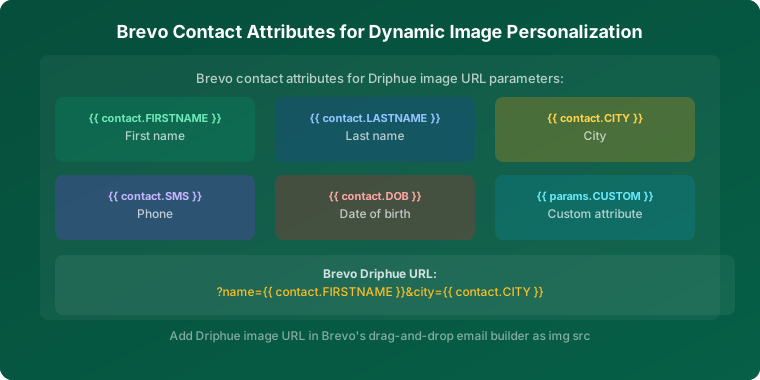
Brevo (formerly Sendinblue) has grown into a comprehensive marketing platform serving businesses of all sizes, with powerful automation, transactional email capabilities, SMS and WhatsApp channels, and competitive pricing that makes it a popular choice for e-commerce brands at every stage. Driphue extends Brevo’s built-in personalisation capabilities by adding dynamic image personalisation to your campaigns — rendering unique personalised hero images for each subscriber at the moment of open, using the same contact attribute data Brevo already stores.
This guide covers everything you need to add personalised Driphue images to Brevo campaigns: how the integration works, step-by-step setup, how to leverage Brevo’s automation features with personalised images, Brevo-specific implementation tips, and real results from brands using Driphue with Brevo.
How Driphue Works with Brevo
Brevo supports personalisation through contact attributes and dynamic content blocks. Contact attributes are fields stored against each contact record — first name, last name, city, custom attributes like tier status or purchase category — that Brevo substitutes into emails at send time. Driphue uses Brevo’s personalisation syntax to generate dynamic image URLs that contain these attribute placeholders. When Brevo sends an email, it replaces the placeholders in the Driphue image URL with the actual values from each contact’s record. Driphue receives the populated URL, renders the personalised image with those values applied to your template, and returns it to the email client when the subscriber opens.
Brevo’s personalisation format uses double curly braces: {{ contact.FIRSTNAME }} for first name, {{ contact.LASTNAME }} for last name, and custom attributes like {{ contact.CITY }} or {{ contact.VIP_TIER }}. Driphue image URLs incorporate these placeholders so Brevo replaces them with actual contact data at send time, and every subscriber sees a uniquely personalised image without any additional manual processing.
Step-by-Step Setup
Step 1: Create Your Driphue Template
Log into Driphue and create a new image template. Design your hero image in Canva using your brand’s fonts, colours, and layout — see our Canva integration guide for the full import workflow. In Driphue, configure a text zone for the personalisation parameter (typically the subscriber’s first name) and set a fallback value for contacts without name data. "Friend" or "Valued Customer" ensures every recipient sees a complete, professional image even if their name field is empty in Brevo.
Step 2: Map Brevo Contact Attributes
In Driphue’s template settings, map your text zone to the Brevo contact attribute you want to render. The primary mapping is {{ contact.FIRSTNAME }}. If you want additional personalisation dimensions — city, loyalty tier, purchase category — add extra text zones and map each to the corresponding Brevo attribute. Verify attribute names match exactly what Brevo stores in your contact records — check these in Brevo’s Contacts settings under "Contact attributes."
Step 3: Generate the Dynamic Image URL
Driphue generates a dynamic URL containing the Brevo personalisation placeholders. The URL looks like: https://driphue.com/img/[template-id]?name={{ contact.FIRSTNAME }}. When Brevo processes the email at send time, it replaces the placeholder with each contact’s actual first name, producing a unique URL per recipient that renders that subscriber’s personalised image on open.
Step 4: Add to Your Brevo Email
In Brevo’s drag-and-drop email editor, add an image block and paste the Driphue dynamic URL into the image source field. Alternatively, switch to the HTML editor for more control over image sizing and responsive behaviour. In the alt text field, include personalisation: {{ contact.FIRSTNAME }}, your exclusive offer ensures subscribers viewing with images blocked see a relevant text description. For full accessibility guidance, see our email accessibility guide.
Step 5: Test Before Sending
Use Brevo’s preview feature to check rendering with test contact data. Then use Brevo’s "Send a test email" function to receive the email at your own address with real personalisation rendered — the definitive check that the Driphue URL is processing correctly. Test with a contact that has name data and a contact without to confirm fallback values render properly. Test on mobile and in multiple clients before sending to your full list.
Leveraging Brevo’s Automation with Personalised Images
Welcome Series Automation
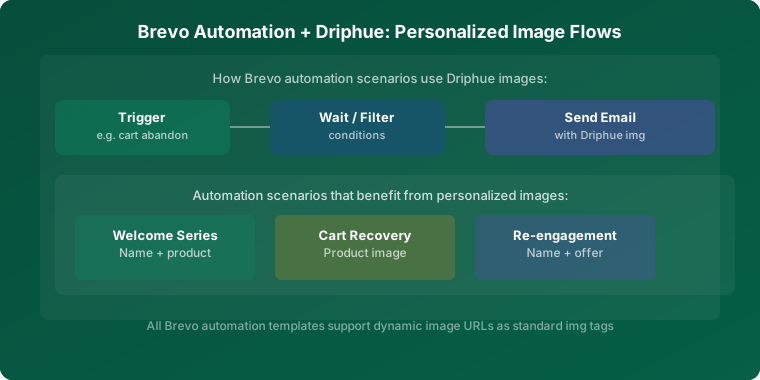
Brevo’s automation workflows make setting up personalised welcome series straightforward. Create a welcome automation triggered by list signup or form submission, and add Driphue personalised images to each email in the sequence. The subscriber’s name in the hero image from the first touchpoint establishes an individually attentive relationship that drives higher first-purchase conversion. For the full welcome series strategy, see our welcome series guide.
Transactional Email Enhancement
Brevo is particularly strong for transactional emails — order confirmations, shipping notifications, delivery confirmations, and password resets. These are the emails subscribers open most reliably and most immediately. Adding a personalised Driphue image to transactional templates — "Sarah, Your Order Is On Its Way" in the shipping notification hero — transforms functional touchpoints into brand-building moments that reinforce the subscriber relationship at their highest-engagement moment. For the full post-purchase personalisation strategy, see our post-purchase sequence guide.
Cart Abandonment Triggers
With Brevo’s Shopify and WooCommerce integrations, you can trigger personalised cart abandonment emails based on cart events from your e-commerce platform. A personalised Driphue image in the cart recovery email — "Sarah, Your Basket Is Still Waiting" — with the subscriber’s name and a specific offer expiry date creates a recovery message that feels individually crafted rather than automated. For the full cart recovery strategy, see our cart abandonment guide.
Re-Engagement Campaigns
Brevo’s segmentation lets you create dynamic lists of subscribers who have not opened or clicked in a defined period. Target these subscribers with personalised re-engagement images: "Sarah, We Miss You — Here’s 15% Off" in the hero image combines personal acknowledgement with an incentive that makes reopening feel worthwhile. For the full re-engagement strategy, see our re-engagement guide.
Segmented Campaigns
Brevo’s segmentation tools let you create dynamic lists based on contact attributes, purchase behaviour, and engagement history. Combine segmentation with different Driphue templates for highly targeted campaigns: new subscribers receive a different personalised visual treatment than VIP customers; one-time buyers see different imagery than repeat purchasers. The name personalisation is consistent across all segments; the image design and messaging context changes. For the full segmentation strategy, see our segmentation guide.
Brevo-Specific Tips
Use custom contact attributes strategically: Brevo allows unlimited custom contact attributes beyond the standard name and email fields. Collect and store data like city, purchase category preference, loyalty tier, and anniversary date to power deeper personalisation. Each custom attribute you populate in Brevo becomes an additional dimension you can render into Driphue images.
Leverage Brevo’s send-time optimisation: Brevo’s machine learning-powered send-time optimisation sends each contact’s email at the time they are most likely to open. When combined with open-time personalised images from Driphue, this ensures each subscriber not only receives the email at their optimal time but sees a personalised image that was rendered for them at that exact moment of open.
Coordinate across channels: Brevo supports email, SMS, and WhatsApp from a single platform. Coordinate personalised email image campaigns with SMS follow-ups referencing the same offer. The consistent personal messaging across channels reinforces the individual relationship and increases overall campaign conversion.
Use Brevo’s API for advanced automation: For high-volume or programmatically generated campaigns, Brevo’s API allows automated campaign creation with pre-built Driphue image URLs. This enables dynamic campaign generation at scale — useful for brands with large product catalogues or highly segmented audiences requiring many template variants.
Real Results from Brevo Users
E-commerce store — 41% higher click rates: Personalised Driphue images added to Brevo campaign templates lifted click-through rates by 41% compared to the same campaigns run with static generic hero images, measured via A/B test across a 60-day period.
SaaS company — 2.6x onboarding completion: Personalised welcome automation images in Brevo drove 2.6x higher onboarding completion rates compared to the previous text-heavy welcome sequence, reducing early-stage churn and improving 30-day activation metrics across the cohort.
Start Personalising Your Brevo Emails
Brevo’s powerful automation, competitive pricing, and multi-channel capabilities make it an excellent platform for personalised email campaigns. Driphue adds the dynamic visual personalisation layer that transforms technically capable Brevo automations into individually addressed subscriber experiences. The integration requires no developer work: create your template in Canva, import to Driphue, paste the dynamic URL with Brevo’s contact attribute syntax into your email block, and every subscriber sees their name rendered in your brand’s design at the moment of open.
For the full personalisation strategy, see our email personalisation guide. For other ESP integration guides, see our Klaviyo guide, Mailchimp guide, and Omnisend guide. Start your free Driphue trial and bring dynamic personalised images to your Brevo campaigns today.
Keep reading
More from the blog
 Email Personalization
The E-commerce Guide to Email Image Personalisation: From First Image to Full Automation
11 min read Email Personalization
Email Image Personalisation Tools Compared: Driphue vs NiftyImages vs Hyperise vs OKZest
10 min read Email Personalization
Email Image Personalization: The Complete Guide for E-Commerce Brands in 2026
8 min read
Personalise every image in your emails
Turn your Klaviyo, Brevo or any-ESP campaigns into dynamic, per-subscriber images and countdown timers — no code required.