Email Accessibility for Personalized Images and Dynamic Content: Design for Everyone

Why Email Accessibility Matters for Personalized Images
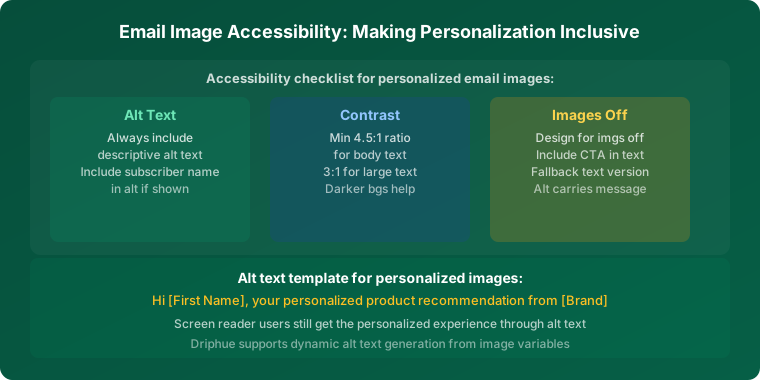
Approximately 15% of the world’s population experiences some form of disability. When your personalised email images are not accessible, you exclude a significant portion of your audience from experiencing the personalisation you have invested in. Beyond the ethical imperative, accessible emails also perform better overall — good accessibility practices improve deliverability, engagement, and inbox placement for all subscribers, not just those with disabilities.
Dynamic personalised images introduce specific accessibility considerations that go beyond standard email accessibility. A static image with alt text is a single solved problem. A dynamic image that renders a different visual for every subscriber requires accessibility implementation that scales with the personalisation — the alt text needs to be as personalised as the image itself, and the fallback experience for subscribers who never see images needs to convey the same individually relevant message that the visual delivers. This guide covers every accessibility consideration relevant to personalised images, with specific implementation guidance for each.
Alt Text for Personalized Images
Why Alt Text Is Critical
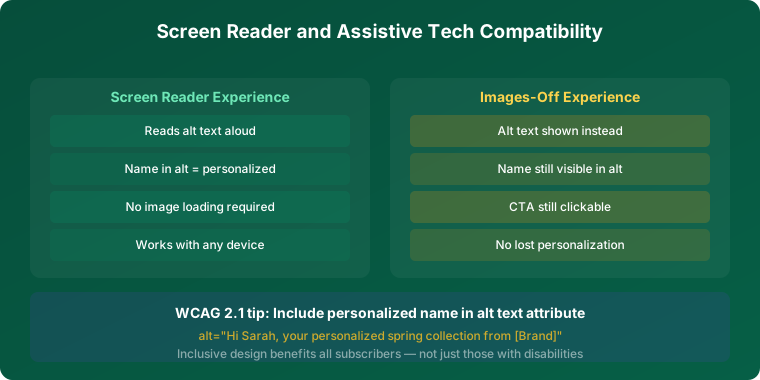
Screen readers cannot interpret text rendered within images. When a personalised image shows “Welcome, Sarah — Your Exclusive Offer Awaits,” a screen reader user hears only the alt text. Without meaningful personalised alt text, they miss the personalisation entirely and may not understand the email’s purpose or the offer it contains.
This is a compound accessibility failure: not only does the user miss the visual personalisation, but the email may also fail to communicate its core message. A welcome email that greets the user by name in the image but has generic alt text (“email hero banner”) delivers the personalisation only to sighted users and treats screen reader users with the generic experience that personalisation was designed to replace.
Dynamic Alt Text Implementation
Just as you personalise the image itself, personalise the alt text. Most ESPs support merge tags in image alt text attributes — the same syntax that personalises the image URL also works in the alt text field. Set your personalised image’s alt text to something like Welcome, *|FNAME|* — exclusive offer inside (Mailchimp syntax) or Welcome, {{ first_name }} — your exclusive offer is waiting (Klaviyo syntax) so screen readers deliver the same personalised experience as the visual image.
This one-step implementation — adding a personalised alt text alongside the personalised image URL — ensures that the accessibility experience matches the sighted experience. It takes 30 seconds per template and applies to every subscriber who opens the email in a screen reader or with images disabled.
Writing Effective Personalised Alt Text
Alt text should convey the essential information of the personalised image without being overly long. A good alt text for a promotional personalised image: “[Name], your 20% off offer expires Friday”. For a welcome image: “Welcome, [Name] — your exclusive discount is inside”. For a loyalty image: “[Name], your rewards balance is 850 points.”
Avoid describing the visual design in alt text (“a dark blue banner with white text and a gradient overlay showing”) unless the visual is itself the content. Alt text describes the information content of the image, not its appearance. For personalised images, the information content is always the personalised message.
Color Contrast and Readability
Personalised Text Over Image Backgrounds
Personalised text overlaid on photographic or designed backgrounds must maintain sufficient colour contrast for readability. This is important for all subscribers but critical for those with low vision or colour blindness — approximately 8% of men and 0.5% of women have some degree of colour vision deficiency. The WCAG AA standard requires a minimum contrast ratio of 4.5:1 for normal text and 3:1 for large text (18pt or 14pt bold).
For personalised images specifically, the most reliable approach is to use a solid or semi-transparent background panel behind the personalised text, ensuring the contrast ratio is consistent regardless of what background photography or gradient sits behind it. A white text overlay on a dark panel, or dark text on a light panel, consistently achieves the required contrast ratio without requiring per-template contrast testing. For the broader colour contrast guidance for email design, see our dark mode guide.
Font Size and Weight
Personalised text elements should be large enough to read comfortably on all devices, at arms’ length on a mobile screen. Minimum 16px equivalent for body text in personalised images and 24px equivalent for name personalisation ensures readability. Bold or semi-bold font weights (600–700 weight) improve legibility for personalised text against varied backgrounds, and reduce the contrast ratio required to meet accessibility standards because heavier strokes are more visually distinct.
Color Blindness Considerations
Avoid relying solely on colour to convey information in personalised images. Urgency messaging should include explicit text (“Offer expires Friday”) rather than relying on red colour alone to signal urgency. Status indicators for loyalty tiers should use both colour and text labels. Promotional imagery should not assume that subscribers can distinguish between red and green, or blue and yellow, in contexts where those distinctions carry meaning.
Image Sizing and Responsive Design
Personalised images should be sized appropriately for email display across all devices. The standard recommendation for email hero images is 600px wide at 2x resolution (1200px actual width), which renders sharply on retina displays without being oversized for standard screens. For personalised images specifically, always set explicit width and height attributes on the img tag — this ensures that if the image is slow to load, the email client reserves the correct space rather than collapsing and reloading the layout. For the complete image optimisation guide, see our image optimisation guide.
Mobile rendering requires additional attention for personalised images because text rendered in images does not reflow the way HTML text does. A personalised text element designed for desktop proportions may become too small to read when the email is displayed at mobile width. Test every personalised image template at 375px width (a standard mobile viewport) to verify that the name and other personalised text elements remain legible at mobile scale. For the full mobile rendering guide, see our mobile optimisation guide.
Fallback Content for Image Blocking
Some email clients block images by default, and some subscribers proactively disable image loading. When personalised images fail to load or are blocked, subscribers should still receive the essential personalised message through HTML fallback content.
The most reliable fallback approach for personalised images is to include the personalised message as HTML text immediately below the image block. Use the same ESP merge tags in the HTML text as in the image alt text: “Welcome, {{ first_name }} — your exclusive 20% off is waiting for you.” This HTML text is visible when images are disabled and hidden when images load correctly — using CSS display toggling that email clients support.
This fallback serves both accessibility and general email resilience. It ensures subscribers in corporate email environments where image proxies block external image requests still receive the core personalised message, and it ensures that the first-open experience in clients that pre-fetch but delay image display (including some versions of Outlook) still communicates the personalised offer before the image resolves.
Testing Personalised Images for Accessibility
Test personalised emails with screen readers to verify the experience. Common screen readers include VoiceOver (built into Apple devices, activated with Command+F5 on Mac or triple-click the side button on iPhone/iPad), NVDA (free for Windows), JAWS (Windows, widely used in enterprise environments), and TalkBack (Android). Verify that personalised alt text renders correctly with the subscriber name substituted, that the email makes sense without images, and that the reading order is logical.
Test colour contrast using WebAIM’s contrast checker or the built-in accessibility tools in design software. Verify that personalised text overlays on all template backgrounds meet the WCAG AA 4.5:1 requirement. For dark mode rendering specifically — which affects colour contrast in personalised images — see our dark mode guide.
Test image loading across client conditions: fast connection, slow connection, and images-disabled. Verify that the HTML fallback renders correctly in each condition. For the cross-client testing methodology, see our email client compatibility guide.
Accessibility Across the Full Personalisation Programme
Accessibility implementation for personalised images follows the same one-time pattern for every template: personalised alt text, solid-background contrast, appropriate font sizing, HTML fallback. Once these practices are built into the template creation workflow, they apply automatically to every personalised image deployed across welcome series, cart recovery, loyalty, birthday, and campaign emails.
Accessible personalised email images serve more subscribers, perform better across more email clients and conditions, and demonstrate brand commitment to inclusive communication. The implementation cost is minimal — the accessibility considerations described in this guide add less than 15 minutes to any personalised image template creation process. For the complete personalisation strategy, see our email personalisation guide. Start your free Driphue trial and ensure your personalised images work beautifully for every subscriber.
Keep reading
More from the blog
 Email Personalization
The E-commerce Guide to Email Image Personalisation: From First Image to Full Automation
11 min read Email Personalization
Email Image Personalisation Tools Compared: Driphue vs NiftyImages vs Hyperise vs OKZest
10 min read Email Personalization
Email Image Personalization: The Complete Guide for E-Commerce Brands in 2026
8 min read
Personalise every image in your emails
Turn your Klaviyo, Brevo or any-ESP campaigns into dynamic, per-subscriber images and countdown timers — no code required.