Mobile Email Rendering for Personalized Images: Complete Optimization Guide 2026
Why Mobile Optimisation Matters for Personalised Email Images
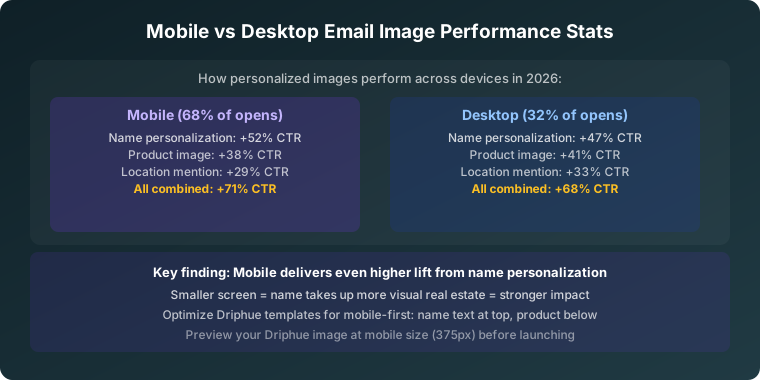
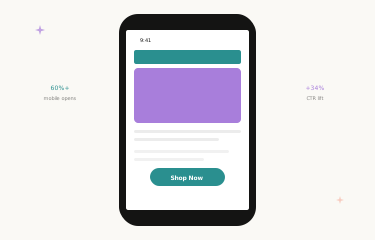
Over 60% of all email opens happen on mobile devices. If your personalised images do not look great on a 375–414px screen, the majority of your subscribers are getting a subpar experience regardless of how well the images perform on desktop. Mobile optimisation for personalised email images is not about shrinking desktop designs — it is about designing mobile-first experiences where the personalised name is legible, the layout is clean at small widths, and the image loads fast enough on a mobile connection to display before the subscriber has moved on.
The stakes are high. Mobile users make split-second decisions about whether to engage with an email. A personalised image that renders perfectly on mobile captures attention immediately — the subscriber’s name in a well-designed hero image lands as personal recognition, not generic marketing. One that is too small to read, too slow to load, or awkwardly cropped at mobile width gets scrolled past in under two seconds. This guide covers every optimisation dimension: design principles, file size, email client behaviour, responsive techniques, alt text strategy, and a testing approach that catches mobile rendering issues before they reach your full list.
Mobile Design Principles for Personalised Images
Size Personalised Text for Mobile Readability
Personalised name text needs to be significantly larger on mobile than your desktop-first instinct suggests. A name rendered at 32px in a 600px-wide design scales to approximately 20px on a 375px screen — still readable. A name at 22px scales to approximately 14px — too small to read without pinching to zoom, which means the personalisation impact is lost before it registers. Design Driphue templates with a minimum equivalent of 28–32px for personalised name elements, and preview the template at 375px width before finalising.
Secondary personalised text — city names, discount codes, tier labels — should follow the same principle. Any personalised element that a subscriber needs to read to understand the email’s relevance must be readable without zooming on a standard smartphone screen.
Single-Column Layouts
Multi-column personalised image layouts break on mobile screens. Side-by-side elements that work at 600px collapse into illegible overlapping content at 375px. Design single-column personalised images where all elements stack vertically and the subscriber’s name remains prominent at the top of the visual hierarchy. The personalised headline should always be the first thing a mobile subscriber sees when the image loads, not a design element buried in a second column that gets pushed below the fold.
Full-Width Image Treatment
Personalised images should span the full width of the email container on mobile. Narrow images with large side margins waste valuable screen real estate and shrink the personalised text further by constraining the rendering width. Set images to 100% width within their container and ensure the Driphue template is designed to the full email width (typically 600px for desktop, scaling to 100% of screen width on mobile) so the personalised name occupies the full visual field.
Touch-Friendly Design
If your personalised image includes a clickable CTA element, ensure it meets the minimum touch target size of 44x44 pixels. "Sarah, Shop Now" buttons embedded in personalised images need generous padding around the tap area so subscribers can click accurately with a thumb rather than a precise pointer. Buttons that are too small create frustrated taps to adjacent links and reduce the click-through rate from what should be the highest-engagement element in the email.
Vertical Composition Priority
Design personalised images with the most critical content — the subscriber’s name and the primary message — in the upper portion of the image. On mobile, images may be partially obscured by preview pane height constraints before the subscriber actively scrolls. The personalised name appearing in the top third of the image ensures it is visible in the preview rendering before the subscriber has decided whether to open fully.
File Size and Loading Speed
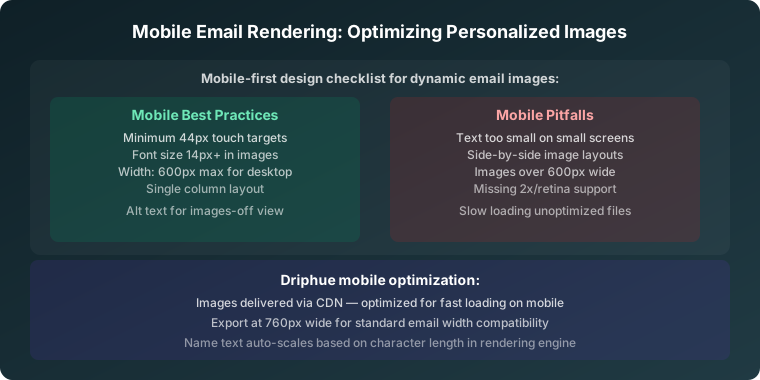
Mobile connections vary dramatically — from fast WiFi to congested 4G in a busy location. Personalised images must load fast enough on slower connections to display before the subscriber abandons the email. The practical target is under 150KB for hero images, which loads in under one second on a 3G connection. Images above 300KB can take several seconds on mobile networks — long enough for the subscriber to scroll past.
Key mobile speed optimisation steps: use JPEG for photographic backgrounds (JPEG’s lossy compression is more effective on photographic content than PNG), compress to the minimum quality level where the personalised name text remains legible, and design at email display dimensions rather than unnecessarily high resolution. Driphue handles compression optimisation automatically at render time, producing the smallest file size that maintains visual quality for each personalised image variant. For the complete technical guide to image load optimisation, see our image load speed guide.
Retina Display Optimisation
Modern iPhone and high-end Android devices use high-DPI "retina" screens that display content at 2x or 3x the pixel density of standard screens. An image served at its exact display dimensions will appear slightly soft on retina screens; serving it at 2x the display dimensions (and constraining the display size via HTML width attribute) produces crisp rendering on both retina and standard displays. Driphue generates retina-ready personalised images automatically. Set the HTML width attribute to the intended display width (600px for full-width desktop, or use 100% for mobile scaling) and the image will appear sharp on all screen types.
Email Client Behaviour on Mobile
Apple Mail (iOS)
Apple Mail on iPhone is the single most important mobile email client for most B2C brands, representing a large share of mobile opens. It renders images reliably, supports modern CSS, handles responsive layouts well, and correctly processes max-width: 100%; height: auto image scaling. Test here first. For Apple Mail Privacy Protection and its effect on open tracking and dynamic image rendering, see our Apple Mail guide.
Gmail App (iOS and Android)
The Gmail mobile app handles images well but clips emails whose total HTML size exceeds 102KB, showing a "Message clipped" prompt that requires the subscriber to click "View entire message" to see the full email. Keep your email template HTML lean and your personalised images efficiently coded to avoid clipping. The Gmail app also has its own image caching behaviour — for details specific to Gmail, see our Gmail image caching guide.
Outlook Mobile
Outlook’s mobile app renders significantly better than desktop Outlook but still has quirks around CSS support and dark mode. Test personalised images in both Outlook mobile and Outlook desktop — they use different rendering engines and require separate verification. For the cross-client compatibility overview, see our email client compatibility guide.
Samsung Mail
Samsung’s default email app is the primary client for a large portion of Android users. It generally renders images well but may apply default font size adjustments that affect how personalised text within images is perceived in surrounding copy. Test on an actual Samsung device — or an emulator — if your subscriber base has significant Android representation.
Responsive Image Techniques
Apply max-width: 100%; height: auto; to all personalised image elements. This single CSS rule ensures images scale proportionally to the screen width without distortion or horizontal overflow. Combined with a container max-width of 600px, it produces images that display at full desktop width on larger screens and scale fluidly to fill the mobile viewport width. Do not use fixed pixel widths without a responsive override — a 600px-wide image with no scaling rule will overflow a 375px mobile viewport and create horizontal scrolling.
Alt Text as Mobile Fallback
When images are blocked in mobile email apps — which some corporate email configurations enforce, and which some subscribers enable manually — personalised alt text maintains the individual connection. Write personalised alt text using your ESP’s merge tag syntax: "{{ first_name }}, your exclusive offer" in the alt attribute renders as "Sarah, your exclusive offer" for the subscriber even when the image itself is not displayed. This preserves the personalisation signal for subscribers who never see the image. For full accessibility guidance including alt text best practices, see our email accessibility guide.
Testing Strategy
Test personalised images on mobile before every major send. The minimum test matrix is Apple Mail iOS, Gmail app (both iOS and Android), and Outlook mobile. Use email testing tools like Litmus or Email on Acid to preview rendering across 90+ clients simultaneously, which is more efficient than manually testing on physical devices for every campaign. For campaigns where mobile performance is especially critical — flash sales, time-sensitive promotions — send a test to your own phone and review the personalised image at actual screen size before deploying to the full list.
Real Results from Mobile Optimisation
Fashion brand — 34% higher mobile CTR: Redesigning personalised image templates to mobile-first proportions — larger personalised name text, single-column layout, full-width composition — increased mobile click-through rates by 34%, lifting overall email programme performance given mobile’s share of total opens.
Food delivery brand — 2.7x mobile conversion rate: Switching from a desktop-first personalised image design to a mobile-first approach nearly tripled mobile conversion rates, attributed primarily to the improved legibility of the personalised name and offer text on small screens.
Start Optimising for Mobile
Mobile is where your subscribers are. Designing personalised images mobile-first — large personalised text, single-column layout, compressed file sizes, retina-ready rendering — ensures the most important element of your email performs at its highest potential for the majority of your audience. The personalised name in the hero image only does its job if the subscriber can actually read it on their phone.
For the complete personalisation strategy, see our email personalisation guide. For image load speed optimisation, see our load speed guide. For cross-client compatibility, see our email client guide. Start your free Driphue trial and deliver stunning personalised images on every screen.
Keep reading
More from the blog
 Email Personalization
The E-commerce Guide to Email Image Personalisation: From First Image to Full Automation
11 min read Email Personalization
Email Image Personalisation Tools Compared: Driphue vs NiftyImages vs Hyperise vs OKZest
10 min read Email Personalization
Email Image Personalization: The Complete Guide for E-Commerce Brands in 2026
8 min read
Personalise every image in your emails
Turn your Klaviyo, Brevo or any-ESP campaigns into dynamic, per-subscriber images and countdown timers — no code required.