Mailchimp Personalized Images: Complete Setup Guide with Driphue
Why Mailchimp Users Need Image Personalization
Mailchimp powers email marketing for millions of small businesses, yet most Mailchimp users still send generic images in every campaign. Adding personalized images — with subscriber names, locations, and dynamic content — to your Mailchimp emails can increase click-through rates by 25-45% without switching platforms.
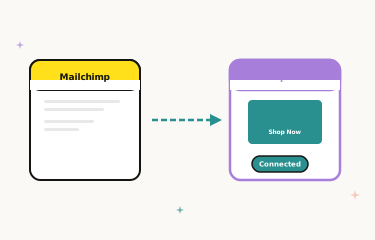
The good news is that Driphue integrates seamlessly with Mailchimp through simple image URLs. No complex API setup, no custom coding, no developer required. If you can paste an image URL into Mailchimp’s editor, you can add personalized images to your campaigns.
How the Mailchimp Integration Works
Driphue generates personalized images through dynamic image URLs. When a subscriber opens your email, the image URL tells Driphue which template to use and which data to pull — subscriber name, location, or any other merge field available in your Mailchimp audience. Driphue renders a unique image for each recipient in real time.
This approach works because Mailchimp supports merge tags in image URLs. Your image source becomes something like https://img.driphue.com/template/abc?name=*|FNAME|* — and Mailchimp replaces the merge tag with each subscriber’s actual first name before sending.
Step-by-Step Setup
Step 1: Create Your Image Template in Driphue
Log into Driphue and create a new image template. Choose your base image — this could be a promotional banner, welcome graphic, or product showcase. Add a text overlay zone where you want the personalized content to appear. Style it with your brand fonts and colors.
Preview the template with sample data to make sure names of different lengths render properly. Driphue’s preview mode lets you test with names like "Alexandra" and "Li" to verify the design handles variation gracefully.
Step 2: Map Your Mailchimp Merge Tags
In Driphue’s integration settings, select Mailchimp as your ESP. Map the template’s personalization fields to Mailchimp merge tags. The most common mappings are FNAME for first name, LNAME for last name, and custom merge tags you have created in your Mailchimp audience for location, membership tier, or other data points.
Step 3: Copy the Dynamic Image URL
Driphue generates a unique image URL with your merge tags embedded. Copy this URL — it contains your template ID and the merge tag parameters that Mailchimp will populate at send time.
Step 4: Insert Into Your Mailchimp Campaign
In Mailchimp’s email editor, add an image block where you want the personalized image to appear. Instead of uploading a static image, paste the Driphue dynamic image URL as an external image source. Mailchimp will display a placeholder in the editor, but the actual personalized image renders when subscribers open the email.
Step 5: Test Before Sending
Use Mailchimp’s preview and test send features to verify the personalization works correctly. Send test emails to yourself and colleagues to confirm names render properly, images load quickly, and the design looks right across email clients.
Best Mailchimp Campaigns for Personalized Images
Welcome Automation
Mailchimp’s automation builder supports personalized images in automated sequences. Add a personalized welcome image to your first automation email — "Welcome, Sarah!" in your brand style creates an immediate personal connection. For a complete welcome strategy, see our welcome email series guide.
Promotional Campaigns
Regular promotional emails benefit enormously from personalized hero images. Instead of a generic "Summer Sale" banner, show "Sarah, Your Summer Sale Starts Now" with a countdown timer to the sale end. This drives 30-50% higher engagement than static alternatives.
Abandoned Cart Reminders
Mailchimp’s e-commerce automations can trigger abandoned cart recovery emails with personalized images showing the subscriber’s name alongside the products they left behind.
Troubleshooting Common Issues
Images not loading in preview: Mailchimp’s editor may show a broken image placeholder for dynamic URLs. This is normal — the image renders correctly when the email is actually sent and opened by subscribers. Always use a test send to verify.
Merge tags showing raw text: If you see literal *|FNAME|* in the rendered image, double-check that the merge tag syntax in the Driphue URL matches Mailchimp’s format exactly. Mailchimp uses the *|TAG|* format with pipe characters.
Long names getting cut off: Adjust your Driphue template’s text overlay zone to accommodate longer names. Set appropriate font scaling rules so the text automatically adjusts for longer strings.
Real Results from Mailchimp Users
Boutique Candle Brand — 52% CTR Increase: Adding Driphue-powered personalized images to their Mailchimp promotional campaigns increased click-through rates from 2.1% to 3.2%, driving an additional $4,800 monthly revenue from the same subscriber base.
Organic Food Delivery — 3.1x Cart Recovery: Personalized abandoned cart images with customer names and countdown timers in Mailchimp automations tripled their cart recovery rate compared to generic reminder emails.
Start Personalizing Your Mailchimp Emails
Mailchimp’s merge tag system makes it straightforward to add Driphue-powered personalized images to any campaign or automation. No migration, no complex integration — just paste dynamic image URLs into your existing Mailchimp workflow. For a broader view of what image personalization can do for your brand, explore our complete guide to email image personalization. Start your free Driphue trial and launch personalized Mailchimp emails today.
Keep reading
More from the blog
 Email Personalization
The E-commerce Guide to Email Image Personalisation: From First Image to Full Automation
11 min read Email Personalization
Email Image Personalisation Tools Compared: Driphue vs NiftyImages vs Hyperise vs OKZest
10 min read Email Personalization
Email Image Personalization: The Complete Guide for E-Commerce Brands in 2026
8 min read
Personalise every image in your emails
Turn your Klaviyo, Brevo or any-ESP campaigns into dynamic, per-subscriber images and countdown timers — no code required.