Personalized Email Images for WooCommerce Stores: Setup and Strategy
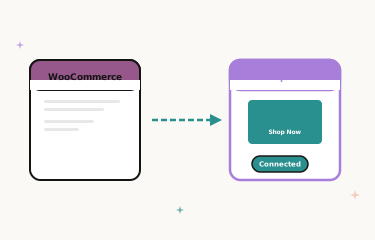
Why WooCommerce Stores Should Personalise Email Images
WooCommerce powers more than a quarter of all online stores globally — and the brands that are winning in the inbox in 2026 are the ones using their customer data to personalise every touchpoint, including the images in their email campaigns.
Unlike Shopify, WooCommerce gives you deep control over your store’s data and the freedom to connect it to any email marketing platform. That flexibility makes personalised email images particularly powerful: you can pull customer first names, purchase history, loyalty status, or any custom field into visually compelling images that feel individually crafted for each subscriber.
Aesop used personalised first-name images in their WooCommerce-powered post-purchase sequence and saw a 28% increase in repeat purchase rate from that flow. Beardbrand implemented personalised welcome images and reported a 34% higher click-through rate on their welcome sequence compared to their previous generic template. Gymshark — which built its early store on WooCommerce before scaling — consistently highlights personalised email communication as a key driver of their loyal customer base.
WooCommerce Email Flows That Benefit Most from Personalised Images
Welcome Sequence
A WooCommerce store’s welcome sequence sets the tone for every future email. A personalised hero image in email 1 — with the new customer’s first name in a well-designed visual — creates an immediate sense of personal connection. Given that welcome emails typically achieve 3–4x higher open rates than standard promotional emails, the absolute reach of your personalised welcome image is maximised.
For the full welcome sequence personalisation strategy, see our guide to welcome email series personalisation.
Cart Abandonment Emails
WooCommerce stores lose a significant portion of revenue to cart abandonment — industry averages sit around 70% cart abandonment rate. Your cart abandonment email sequence is the primary recovery mechanism, and personalised images dramatically improve recovery rates.
A personalised cart abandonment image that shows the customer’s first name alongside a reminder message creates a recovery email that feels personally crafted rather than automated. Combined with the product imagery of their abandoned items, this creates a highly compelling re-engagement prompt.
For the full cart abandonment personalisation strategy, see our guide to cart abandonment emails with personalised images.
Post-Purchase Cross-Sell and Upsell
After a WooCommerce customer completes a purchase, the post-purchase email sequence is your opportunity to sell complementary products and drive repeat purchase. A personalised image that addresses the customer by name alongside a relevant product recommendation creates a follow-up that feels like a personal suggestion rather than a mass campaign.
For purchase history personalisation strategies, see our guide to purchase history email personalisation.
Loyalty and VIP Programme Emails
WooCommerce stores running loyalty programmes (via plugins like WooRewards, YITH WooCommerce Points and Rewards, or Smile.io) can sync member data to their email platform and use it to power personalised loyalty images. Each member’s tier name, points balance, and progress to the next reward rendered into a visual creates a compelling loyalty communication that text-based emails can’t match.
For the full loyalty programme strategy, see our guide to loyalty programme email personalisation.
Seasonal and Promotional Campaigns
WooCommerce stores run regular promotional campaigns — seasonal sales, product launches, flash events. Personalised images in these campaigns address each subscriber by name in the promotional imagery, creating a personal connection in an otherwise mass broadcast. For seasonal personalisation strategies, see our guides for summer campaigns and holiday season personalisation.
ESP Options for WooCommerce Personalised Images
The right email platform depends on your WooCommerce store’s size and needs. The most popular options for WooCommerce stores are:
Klaviyo: The most feature-rich option for WooCommerce personalisation. The Klaviyo WooCommerce plugin syncs customer data, purchase history, product browsing behaviour, and loyalty programme data automatically. Personalised image URL syntax: {{ first_name }}. Full guide: personalised images in Klaviyo.
Mailchimp: A popular choice for smaller WooCommerce stores. The WooCommerce Mailchimp plugin syncs purchase data. Personalised image URL syntax: *|FNAME|*. Full guide: personalised images in Mailchimp.
ActiveCampaign: Well-suited for WooCommerce stores with complex automation needs. Personalised image URL syntax: %FIRSTNAME%.
GetResponse: Good option for WooCommerce stores that also run webinars or B2B lead nurturing. Merge tag syntax: {{CONTACT "firstname"}}. Full guide: personalised images in GetResponse.
How to Set Up Personalised Images for WooCommerce with Driphue
Step 1: Ensure Customer Data is in Your ESP
Before setting up personalised images, verify that your WooCommerce customer data is flowing into your email platform. For Klaviyo, install the official WooCommerce plugin and confirm that first names, purchase history, and any custom fields are syncing. For other ESPs, check their WooCommerce integration documentation to confirm the data fields available.
Step 2: Design Your Images in Canva
Create personalised email image templates in Canva for each flow you want to personalise: welcome, cart abandonment, post-purchase, loyalty. Each design should include a text layer for the customer’s first name. Size at 600px wide for standard email layout compatibility.
For your welcome image, consider a warm, branded design with “Welcome, [Name]” as the central message. For cart abandonment, use a design that feels urgent but personal — “[Name], you left something behind”. For loyalty, use tier-branded imagery with the customer’s name and status prominently displayed.
Step 3: Import into Driphue and Configure
Use Driphue’s Canva integration to import each design. Mark the name text layer as dynamic, assign the parameter name name, and generate your personalised image URL for each template.
Step 4: Connect ESP Merge Tags
Append your ESP’s first-name merge tag to each Driphue URL. For Klaviyo:
https://img.driphue.com/[image-id]?name={{ first_name }}
For each email flow in your ESP, update the image block to use the personalised Driphue URL. In Klaviyo flows, this means editing each email in the flow and replacing the hero image src with the personalised URL.
Step 5: Test Across Email Clients
Send test emails to addresses on Gmail, Apple Mail, and Outlook. Verify the personalised image renders with real customer names. Check that the fallback renders correctly for subscribers without a first name stored. For most ESPs, you can add a fallback: in Klaviyo, use {{ first_name|default:'there' }}.
Measuring WooCommerce Email Personalisation Impact
The key metrics to track are click-through rate and repeat purchase rate for each personalised email flow. Compare these against your pre-personalisation baselines — or, if you’re implementing personalisation for the first time, run an A/B test in your welcome sequence (personalised image vs. generic image) to establish your own lift.
For WooCommerce stores on Klaviyo, the revenue attributed to each flow is directly visible in Klaviyo’s flow analytics. Compare attributed revenue per email between personalised and generic versions to quantify the direct business impact.
Driphue’s view analytics show image render counts, giving you a platform-level measure of personalised image engagement independent of your ESP’s tracking. For the full approach to calculating personalisation ROI, see our guide to measuring email personalisation ROI.
Start Personalising Your WooCommerce Email Campaigns
WooCommerce gives you the data and the flexibility to implement personalised email images across every customer-facing flow. The setup is straightforward: connect your ESP, design in Canva, configure in Driphue, and deploy.
Start with your welcome sequence — the highest-engagement flow with the greatest potential for immediate lift. Expand to cart abandonment and post-purchase once you’ve validated the performance improvement. For the complete personalisation strategy overview, see our complete guide to email image personalisation for e-commerce.
Keep reading
More from the blog
 Email Personalization
The E-commerce Guide to Email Image Personalisation: From First Image to Full Automation
11 min read Email Personalization
Email Image Personalisation Tools Compared: Driphue vs NiftyImages vs Hyperise vs OKZest
10 min read Email Personalization
Email Image Personalization: The Complete Guide for E-Commerce Brands in 2026
8 min read
Personalise every image in your emails
Turn your Klaviyo, Brevo or any-ESP campaigns into dynamic, per-subscriber images and countdown timers — no code required.