How to Add Personalised Images to Cart Abandonment Emails (With Examples)
Why Personalised Images Transform Cart Recovery
Cart abandonment emails are the highest-revenue automated flow for most e-commerce brands. The average cart abandonment rate across e-commerce categories hovers around 70%, meaning the majority of shopping sessions end without a purchase. Recovery emails bring shoppers back — and the difference between a generic recovery email and a personalised one is the difference between a reminder and a recognition moment.
A generic “You left something behind” banner treats every abandoned cart identically, regardless of who the shopper is, what they were looking at, or what their relationship with the brand looks like. A personalised cart recovery image that shows the shopper’s name and the specific product category they were considering triggers recognition and specificity that text alone cannot achieve. The image is the first thing the subscriber sees when they open the email. Making it personal from that first visual moment sets the tone for the entire email and increases the probability that the subscriber engages rather than dismisses.
For context on how personalised email images work across all use cases, see our complete guide to email image personalisation.
What Data to Personalise in Cart Recovery Images
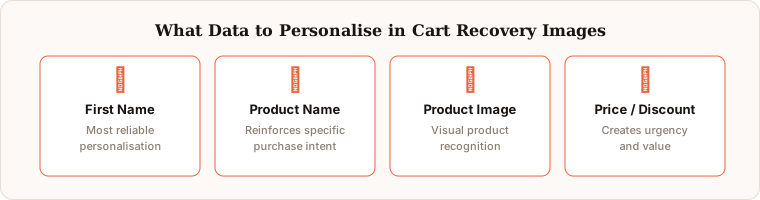
The most effective cart abandonment images combine multiple data points in a single cohesive design. The more relevant the image feels to the specific subscriber and their specific abandoned session, the higher the recovery rate.
Subscriber first name. The simplest and most reliable personalisation. “Sarah, you left this behind” is immediately more engaging than a generic subject line repeated in the image. The name signals individual recognition; the recovery framing respects the shopper’s deliberation process rather than presupposing they made a mistake.
Product name. Showing the exact product name in the image reinforces the specific intent the shopper had. This works especially well when the product name is distinctive or carries aspirational weight — seeing “Sarah, Your Merino Wool Coat Is Waiting” is more evocative than a generic “Items in Your Cart.”
Product image. If your ESP passes product image URLs as merge tags — Klaviyo does this natively for abandoned cart flows — you can render the actual product photo within your personalised banner. The visual of the specific product the subscriber was considering is the most powerful re-engagement signal available, because it is the object of their deferred desire.
Price or discount offer. Displaying the price or a personalised discount code in the image creates urgency and value simultaneously. “Sarah, your 10% off applies until Sunday” with the specific date named in the image is more effective than a generic discount banner, because the specific date makes the deadline feel real and credible rather than fabricated.
Named offer expiry date. Displaying a specific date in the personalised image — “Your offer expires Friday” — creates genuine urgency that motivates purchase action. The named date is as effective as a live mechanical timer for driving urgency and is significantly more reliable across email clients, which vary in their support for dynamic elements.
Setting Up Cart Recovery Images in Driphue
The setup follows the standard Driphue workflow with cart-specific merge tag considerations at each step.
Step 1: Design your cart recovery banner in Canva. Create a visually compelling template that leaves clear placeholder areas for the subscriber name, product name, and any other dynamic elements. Keep the composition clean — the personalisation should be the visual focal point, not competing with busy background graphics. Test the design with short names (Jo) and long names (Christopher) to ensure the layout adapts gracefully across the range of real subscriber names.
Step 2: Import into Driphue and add merge tag layers. Import the Canva design into Driphue and add dynamic text layers with the merge tags your ESP uses for first name and cart product data. For Klaviyo, first name uses {{ first_name }} and product name uses {{ event.ProductName }} from the cart abandonment event properties. For other ESPs, see the platform-specific notes below.
Step 3: Generate the personalised URL and add to your flow. Driphue generates a URL with the correct merge tag syntax for your ESP. Copy the URL and paste it as the image source in your cart abandonment email template. The URL works identically in the first, second, and third emails of a multi-step recovery sequence.
Step 4: Test with sample data. Use Driphue’s preview tool with sample subscriber and product data to verify the image renders correctly before activating the flow. Test with a short name, a long name, and a blank name to confirm fallback behaviour. Test with a short product name and a long product name to confirm the design remains clean across variations.
ESP-Specific Setup Notes
Different ESPs handle cart abandonment data differently, and the available personalisation data points vary significantly between platforms.
Klaviyo: The most complete platform for cart-level personalisation. Cart data is available through flow event variables — product name, product image URL, price, quantity, and category are all accessible as merge tags in abandoned cart flows. Klaviyo is the most straightforward ESP for product-level image personalisation and the recommended starting point for brands evaluating cart recovery image personalisation for the first time.
Omnisend: Cart abandonment flows include product data through Omnisend’s automation triggers. Product name, price, and image URL are available as merge tags. Driphue merge tags map directly to Omnisend’s product variable format.
Mailchimp: Cart data is available in automation workflows for connected Shopify and WooCommerce stores. Customer name and product fields are accessible through Mailchimp’s merge tag system. Product image URL availability depends on the store integration configuration.
ActiveCampaign: Requires Deep Data integration with your e-commerce platform to access cart-level product data in automations. Once Deep Data is configured, product name and other cart properties are available as custom event variables for image personalisation.
For platforms not listed here, check the full integrations page for setup instructions.
Design Best Practices for Cart Recovery Images
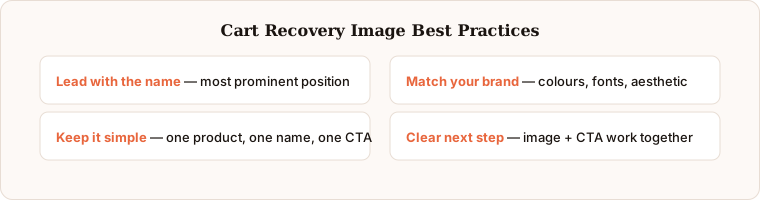
Based on what consistently performs across e-commerce brands using personalised cart recovery images, these four principles apply regardless of brand, product category, or platform.
Lead with the name. Put the subscriber’s name in the most visually prominent position in the image. “Sarah, come back for this” in large, well-typeset text is more effective than burying the name in a small subtitle below a product image. The name is the personalisation hook; it should command attention, not whisper it.
Keep the composition simple. One product reference, one name, one clear message. Trying to show multiple abandoned products or multiple offer messages in a single personalised image creates visual complexity that dilutes the recovery message. Choose the single most important element and build the design around it.
Match your brand standards. The personalised cart recovery image should look like it belongs in your email programme — same brand colours, same typography hierarchy, same photography aesthetic as your other campaign images. A recovery email that feels visually inconsistent with the brand creates distrust rather than recognition.
Use the image to capture attention, the CTA to drive action. The personalised image’s job is to capture attention and establish relevance. The email CTA button’s job is to drive the click back to the cart. The image and the CTA should work together, not compete. The image creates the hook; the CTA gives the subscriber the next step.
Measuring Cart Recovery Image Performance
Track image views in the Driphue dashboard to see how many subscribers in your cart abandonment flow are seeing your personalised recovery images. Compare click-through rates on your cart abandonment flow before and after adding personalised images — the click-through rate is the most direct indicator of image performance, since the image’s primary job is to increase engagement enough to generate a click back to the cart.
For a more complete performance picture, track the recovery rate — the percentage of abandoned carts that result in a completed purchase — as your primary success metric. Most brands that add personalised images to cart recovery flows see recovery rate improvements of 30–50% within the first month of deployment. For the full ROI measurement methodology, see our ROI measurement guide.
Expanding Beyond Cart Recovery
Once your cart abandonment flow is delivering personalised images, the logical next expansions are welcome series images, post-purchase follow-up images, and birthday and loyalty images. Each flow benefits from the same Driphue workflow, and the compound effect of personalised visuals across your entire email programme creates a brand experience that is distinctive, individually attentive, and difficult for competitors to replicate.
For the complete cart recovery strategy, see our cart abandonment guide. Start your free Driphue trial and add personalised images to your cart recovery flow today.
Keep reading
More from the blog
 Email Personalization
The E-commerce Guide to Email Image Personalisation: From First Image to Full Automation
11 min read Email Personalization
Email Image Personalisation Tools Compared: Driphue vs NiftyImages vs Hyperise vs OKZest
10 min read Email Personalization
Email Image Personalization: The Complete Guide for E-Commerce Brands in 2026
8 min read
Personalise every image in your emails
Turn your Klaviyo, Brevo or any-ESP campaigns into dynamic, per-subscriber images and countdown timers — no code required.