HubSpot Email Personalization: How to Set Up Dynamic Images with Driphue
Unlock Visual Personalization in HubSpot Emails
HubSpot’s marketing platform offers powerful contact properties, smart content rules, and sophisticated automation. But when it comes to email images, most HubSpot users still rely on static banners and generic visuals. Dynamic image personalisation with Driphue lets you leverage HubSpot’s rich contact data to create visually personalised email experiences that match the sophistication of the platform’s automation capabilities.
HubSpot stores extensive contact information: names, company details, lifecycle stages, deal information, and custom properties. All of this data can power personalised images that make every email feel individually crafted for each recipient — whether you are running B2C promotional sequences, B2B lead nurture programmes, or account-based marketing campaigns. This guide covers the full setup, the most powerful HubSpot-specific personalisation strategies, and the workflows that deliver the strongest results.
How Driphue Integrates with HubSpot
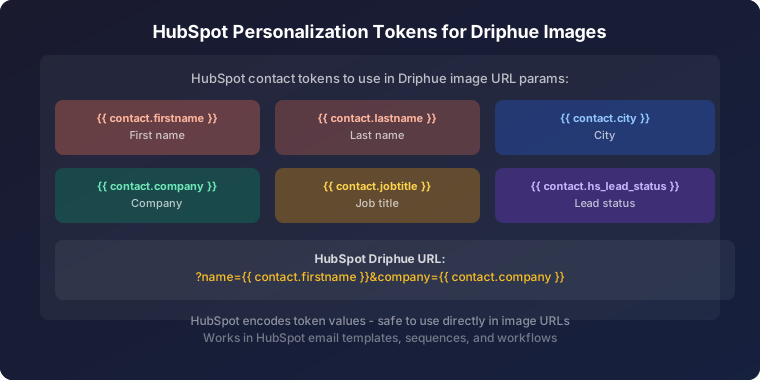
HubSpot supports personalisation tokens in image URLs within email templates. Driphue generates dynamic image URLs that incorporate HubSpot’s token syntax. When HubSpot sends the email, it replaces the tokens with actual contact data, and Driphue renders a personalised image at the moment of open.
HubSpot’s personalisation tokens use the format {{contact.firstname}}, {{contact.city}}, and {{contact.your_custom_property}}. Driphue maps these tokens to your image template fields automatically when you select HubSpot as your ESP. The token format is case-sensitive and must match the internal property name exactly — use HubSpot’s contact property manager to confirm the exact API name for any custom property you want to use, as display names and API names sometimes differ.
Setting Up the Integration
Step 1: Create Your Template
Design your image template in Driphue, starting from an existing design you have imported from Canva or built from scratch. Add text overlay zones for the personalised elements you want to display. For HubSpot users, common personalisation fields include first name, company name, lifecycle stage messaging, and deal-specific content. For B2C brands on HubSpot, city, loyalty tier, and custom segment properties are most commonly used.
Test the design layout with both short and long values for each dynamic field. Company names in particular vary enormously in length — "ABC Co" and "North Atlantic Shipping Partners LLC" are both real possibilities. Ensure your text zone and font size combination handles the extremes without overflowing or wrapping awkwardly.
Step 2: Map HubSpot Tokens
Select HubSpot in Driphue’s ESP settings. Map each template field to the corresponding HubSpot contact property. Driphue formats the URL with the correct token syntax and provides a ready-to-use image URL. Set fallback values for every field — "Friend" for first name when missing, "Your Company" for company name, "Member" for lifecycle stage or tier fields. Fallbacks ensure every subscriber receives a natural-reading image regardless of data completeness.
To find the exact API name for a custom HubSpot property, go to Settings → Properties → find your property → the internal name shown in the property details panel is what you use in the token format: {{contact.internal_name_here}}.
Step 3: Embed in HubSpot Email Editor
In HubSpot’s drag-and-drop email editor, add an image module. Switch to the source URL option and paste the Driphue dynamic image URL. HubSpot will process the personalisation tokens at send time, ensuring each contact receives an image rendered with their specific data. Add personalised alt text using the same token syntax — {{contact.firstname}}, your offer is inside — to support subscribers with images disabled.
Step 4: Leverage Smart Content
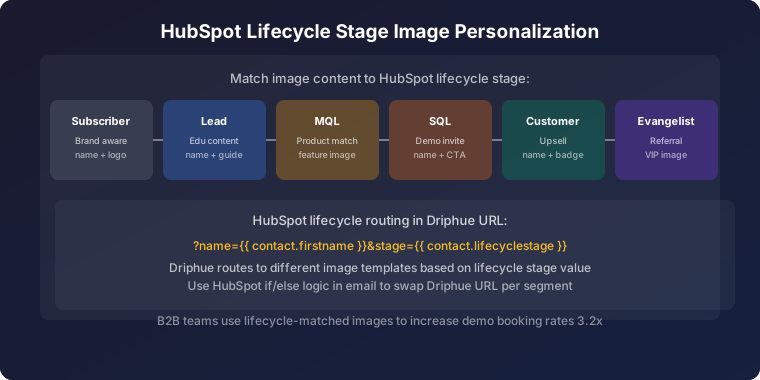
HubSpot’s smart content feature lets you display different content blocks to different contact segments. Combine this with Driphue by creating multiple image templates for different audiences — one for leads, another for customers, another for enterprise accounts — and use smart content rules to show the right personalised image to each segment. This creates two-layer personalisation: the template design is segment-specific, and within each design the subscriber’s individual data is rendered. The result is an email visual that is both contextually appropriate for the segment and individually addressed to the specific contact.
Step 5: Test Before Sending
Use HubSpot’s personalisation token preview feature to check how the image URL resolves for a specific contact. Select a test contact in the preview and confirm the personalised image renders correctly with their data. Send test emails to your own inbox and at least one other address, checking both mobile and desktop rendering. Check the fallback by previewing with a contact who has missing fields. For cross-client rendering guidance, see our email client compatibility guide.
HubSpot-Specific Personalization Strategies
Lifecycle Stage Personalisation
HubSpot’s lifecycle stages provide natural segmentation for visual personalisation. Leads see welcome-focused imagery with their name and an introductory offer. Marketing qualified leads see product-focused personalised images highlighting features relevant to their interests. Customers see loyalty and cross-sell imagery with personalised recognition acknowledging their existing relationship. Each lifecycle stage gets a Driphue template designed for that specific relationship context, and within each template the individual contact’s name and properties are rendered.
Company-Level Personalisation for B2B
HubSpot excels at B2B marketing, and Driphue can leverage company data for account-based personalisation at scale. Insert company names into images for ABM campaigns: "Custom solutions for Acme Corp" with a branded visual template. This level of personalisation drives significantly higher engagement in B2B outreach — decision-makers respond to being specifically recognised, and a personalised image reinforces that the email is targeted rather than blasted. For companies with dedicated account managers, the account manager’s name can also be incorporated: "From your account manager, James — an offer for Acme Corp."
Deal Stage Automation
HubSpot workflows triggered by deal stage changes can include personalised images that reflect the current stage context. When a deal moves to the proposal stage, send an image with the contact’s name and company alongside a proposal-specific message and a named deadline ("Your proposal is reserved until Friday"). When a deal moves to the negotiation stage, send an image acknowledging the progress. This visual acknowledgment of deal advancement creates a premium, individually attentive experience that generic deal-stage emails cannot replicate.
Best HubSpot Workflows for Dynamic Images
Lead Nurture Sequences: Add personalised images to your lead nurture workflows. Each email in the sequence features the contact’s name integrated into educational and promotional visuals, building familiarity and trust throughout the nurture journey. The personalised image in email 3 of a 6-email nurture sequence performs better than the same generic image would, because the recipient has already associated your brand with individually attentive communication from the first personalised email.
Onboarding Automation: Welcome new customers with a personalised onboarding series. Driphue images showing "Welcome to [Product], Sarah!" create a premium onboarding experience that reduces early churn by establishing an engaged relationship from the first day. For the complete welcome strategy, see our welcome series guide.
Re-Engagement Campaigns: Win back disengaged contacts with personalised imagery that references their name and acknowledges the gap. "We miss you, Sarah — here’s what’s changed since your last visit" with a named offer expiry date creates individual urgency that generic win-back banners cannot achieve. For the full re-engagement strategy, see our re-engagement guide.
Event Promotion: Promote webinars, product launches, and in-person events with personalised images showing the contact’s name alongside the event name and a specific RSVP deadline date ("Sarah, RSVP by Thursday"). HubSpot’s event management tools combined with Driphue’s personalised image rendering create event promotion emails that feel individually invited rather than mass-broadcasted.
Real Results from HubSpot Users
B2B SaaS — 34% demo request increase: Adding personalised images with prospect names and company names to their HubSpot lead nurture sequences increased demo request conversion from 4.2% to 5.6%, representing a meaningful improvement in pipeline volume from the same lead acquisition spend.
E-commerce brand — 38% higher email revenue: Personalised images across HubSpot marketing emails and automations lifted email-attributed revenue by 38%, with the strongest impact on promotional campaign click-through rates and welcome series first-purchase conversion.
Start Personalising Your HubSpot Emails
HubSpot’s rich contact data and smart content capabilities combined with Driphue’s dynamic image engine create powerful personalisation opportunities for both B2B and B2C brands. The combination is particularly effective for businesses that sell to both individuals and companies, where the same Driphue infrastructure supports name personalisation for consumer emails and company-name personalisation for B2B outreach.
For the complete personalisation strategy, see our email personalisation guide. For the universal ESP integration workflow that covers HubSpot alongside all other platforms, see our universal ESP guide. Start your free Driphue trial and bring visual personalisation to your HubSpot emails today.
Keep reading
More from the blog
 Email Personalization
The E-commerce Guide to Email Image Personalisation: From First Image to Full Automation
11 min read Email Personalization
Email Image Personalisation Tools Compared: Driphue vs NiftyImages vs Hyperise vs OKZest
10 min read Email Personalization
Email Image Personalization: The Complete Guide for E-Commerce Brands in 2026
8 min read
Personalise every image in your emails
Turn your Klaviyo, Brevo or any-ESP campaigns into dynamic, per-subscriber images and countdown timers — no code required.